
CCSU Samarth Portal – Login, Registration, Admission & Exam Form Guide
Chaudhary Charan Singh University (CCSU), Meerut, uses the Samarth eGov Suite as its official digital platform for student registration, admission, examination forms, admit cards, and academic records. This page covers everything about CCSU Samarth Portal, including the different CCSU-specific Samarth links, how to log in, register, and complete key student processes.
What Is CCSU Samarth Portal?
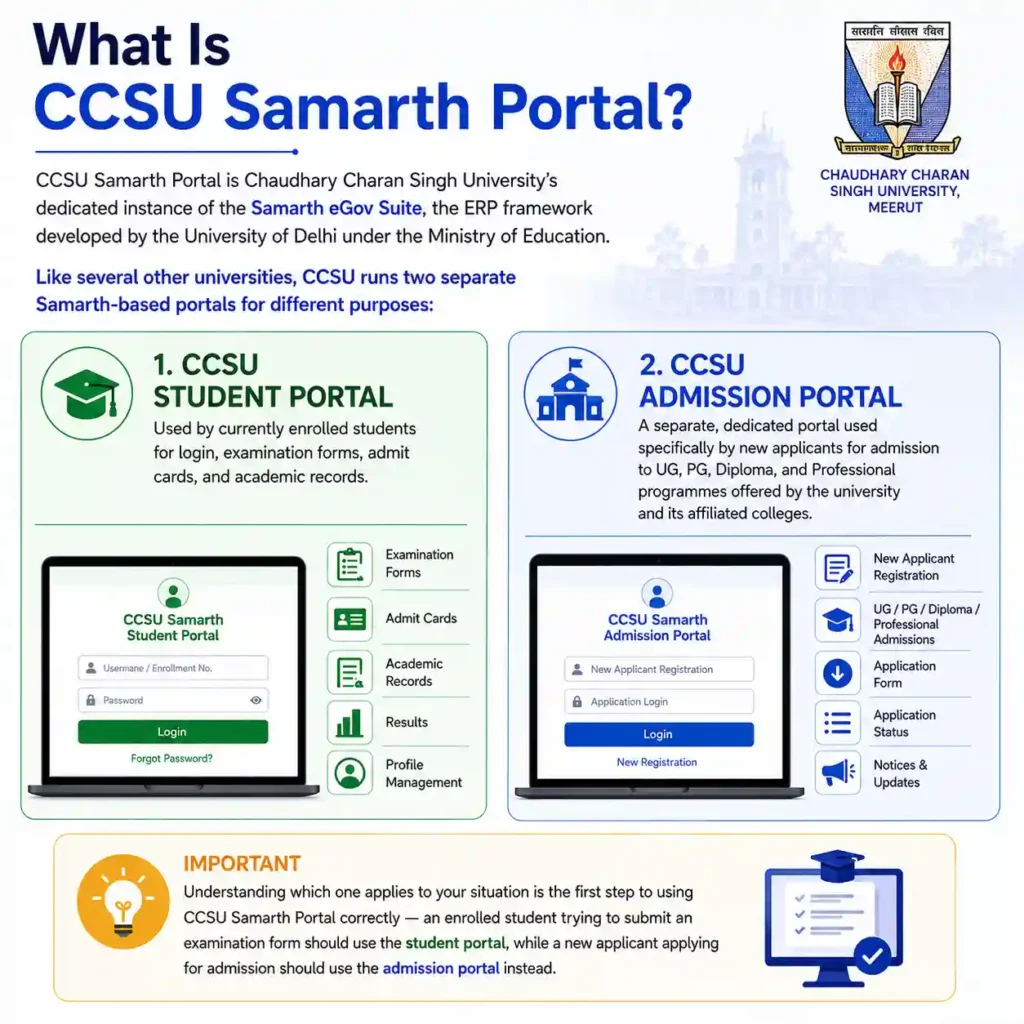
CCSU Samarth Portal is Chaudhary Charan Singh University’s dedicated instance of the Samarth eGov Suite, the ERP framework developed by the University of Delhi under the Ministry of Education. Like several other universities, CCSU runs two separate Samarth-based portals for different purposes:
- CCSU Student Portal — used by currently enrolled students for login, examination forms, admit cards, and academic records.
- CCSU Admission Portal — a separate, dedicated portal used specifically by new applicants for admission to undergraduate, postgraduate, diploma, and professional programmes offered by the university and its affiliated colleges.
Understanding which one applies to your situation is the first step to using CCSU Samarth Portal correctly — an enrolled student trying to submit an examination form should use the student portal, while a new applicant applying for admission should use the admission portal instead.
CCSU Samarth Portal Login
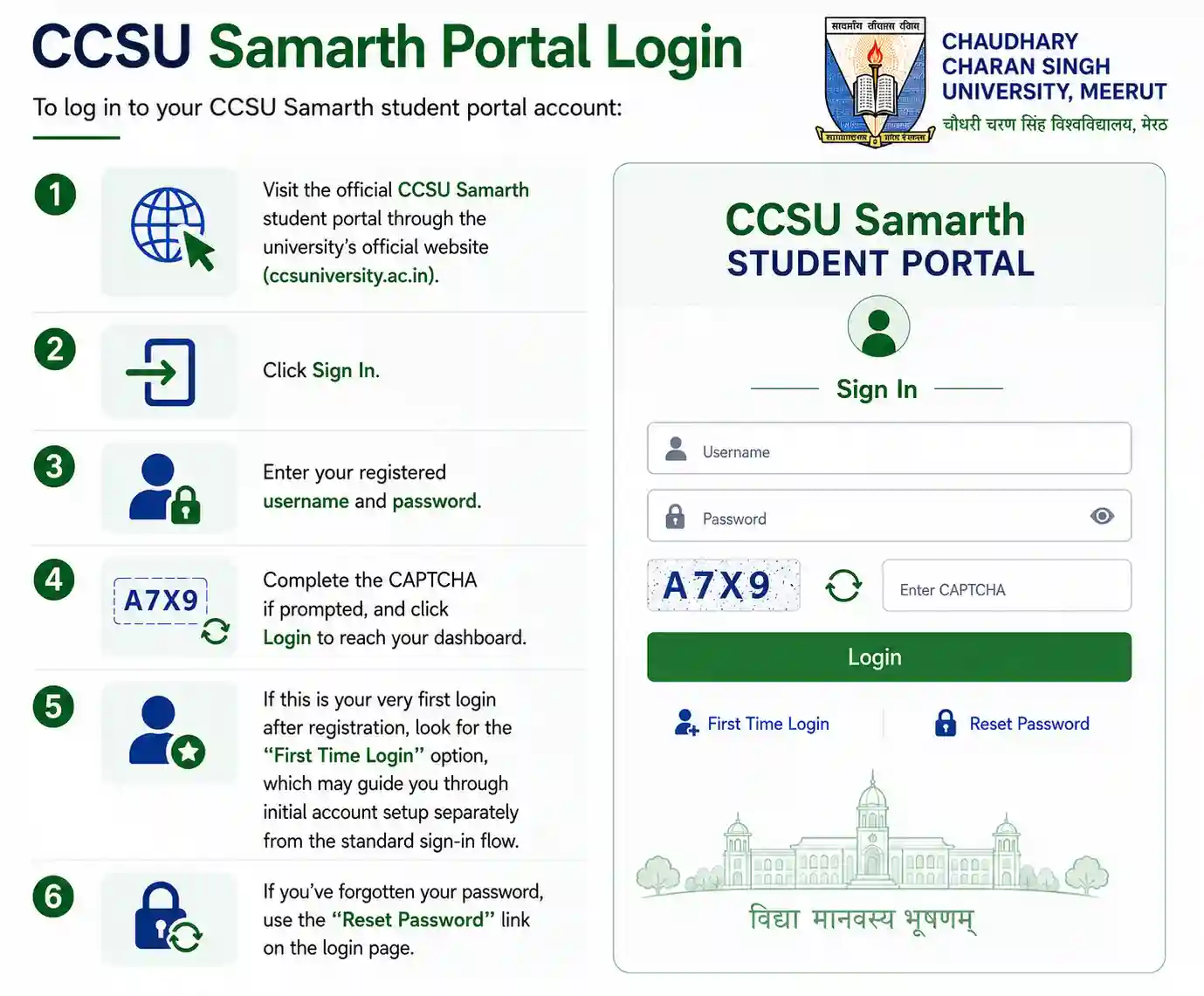
To log in to your CCSU Samarth student portal account:
- Visit the official CCSU Samarth student portal through the university’s official website (ccsuniversity.ac.in).
- Click Sign In.
- Enter your registered username and password.
- Complete the CAPTCHA if prompted, and click Login to reach your dashboard.
If this is your very first login after registration, look for the “First Time Login” option, which may guide you through initial account setup separately from the standard sign-in flow. If you’ve forgotten your password, use the “Reset Password” link on the login page.
CCSU Samarth Portal Registration
New students register on the CCSU Samarth student portal as follows:
- Go to the official CCSU Samarth student portal and click New Registration.
- Fill in your basic personal details — name, date of birth, category, mobile number, and email address.
- Verify your mobile number or email via OTP.
- Complete your academic profile with your previous qualifying examination details.
- Upload the required documents (photograph, signature, mark sheets, and category certificate if applicable) in the specified format.
- Submit the form and set your account password for future logins.
After registration, your details are verified by the university before your enrollment is confirmed and full portal access is unlocked, including examination form submission.
CCSU Samarth Portal Admission
For new applicants seeking admission to CCSU or its affiliated colleges across undergraduate, postgraduate, diploma, and professional programmes:
- Visit the official CCSU Samarth admission portal (a separate link from the student portal).
- Explore available programmes offered by the university and its affiliated colleges, and check your eligibility.
- Register with your email address, since CCSU’s admission portal requires applicants to log in using their registered email only.
- Fill in your application form carefully — your name and other details must exactly match your Class XII board marksheet, since mismatches can cause processing issues later.
- Upload required documents and pay the application fee securely online.
- Track your application status, document verification, and merit list results directly from your admission portal dashboard.
CCSU also periodically opens admission windows for specific programmes such as ITEP (B.A. B.Ed. and B.Sc. B.Ed.) through the same Samarth-based admission system, alongside its regular UG and PG admission cycles — so always check the university’s current notices for programme-specific windows and any registration date extensions.
CCSU Samarth Portal Examination Form
Currently enrolled CCSU students use the student portal to submit their semester or annual examination form:
- Log in to your CCSU Samarth student portal account.
- Navigate to the Examination section and select your current semester/session.
- Verify your registered subjects are correct.
- Pay the examination fee online through the integrated payment gateway.
- Submit the form and save your acknowledgment receipt.
CCSU regularly publishes detailed examination schedules — including for specific programmes like PG second semester or B.Pharm semester exams — as official notices, so check the university’s notice board alongside your Samarth Portal dashboard for exact dates each session.
CCSU Samarth Portal Admit Card
Once your examination form is processed, CCSU releases admit cards (hall tickets) through the Samarth student portal ahead of the exam dates:
- Log in to your CCSU Samarth student portal account.
- Go to the Examination or Admit Card section.
- Select the relevant exam session and download your admit card.
- Carefully verify your name, roll number, subjects, and exam centre before your exam date.
CCSU Samarth Portal Result
Results are published on the CCSU Samarth student portal once finalized by the examination department. Log in, go to the Results section, and download your marksheet or grade card for your records. CCSU also periodically issues notices regarding challenge evaluation results and revised marksheets, so if you’ve applied for re-evaluation, check both your portal dashboard and official university notices for updates.
CCSU Samarth Portal for Colleges
Since CCSU is an affiliating university with a large number of constituent and affiliated colleges, colleges themselves interact with CCSU’s systems for functions like student data submission and examination coordination — in some cases through a separate college-facing management system rather than the main student-facing Samarth portal. If you’re a college administrator rather than a student, check with the university’s examination department for the correct college-level access point, as this may differ from the student registration and login process described above.
CCSU LMS (Learning Management System)
It’s worth noting that CCSU also operates a separate Moodle-based Learning Management System (LMS), distinct from the main CCSU Samarth Portal used for registration, examination forms, and admit cards. The LMS is generally used for course content and online learning material, while Samarth Portal handles the core admission, registration, and examination processes covered on this page — students typically need to log in to both separately.